
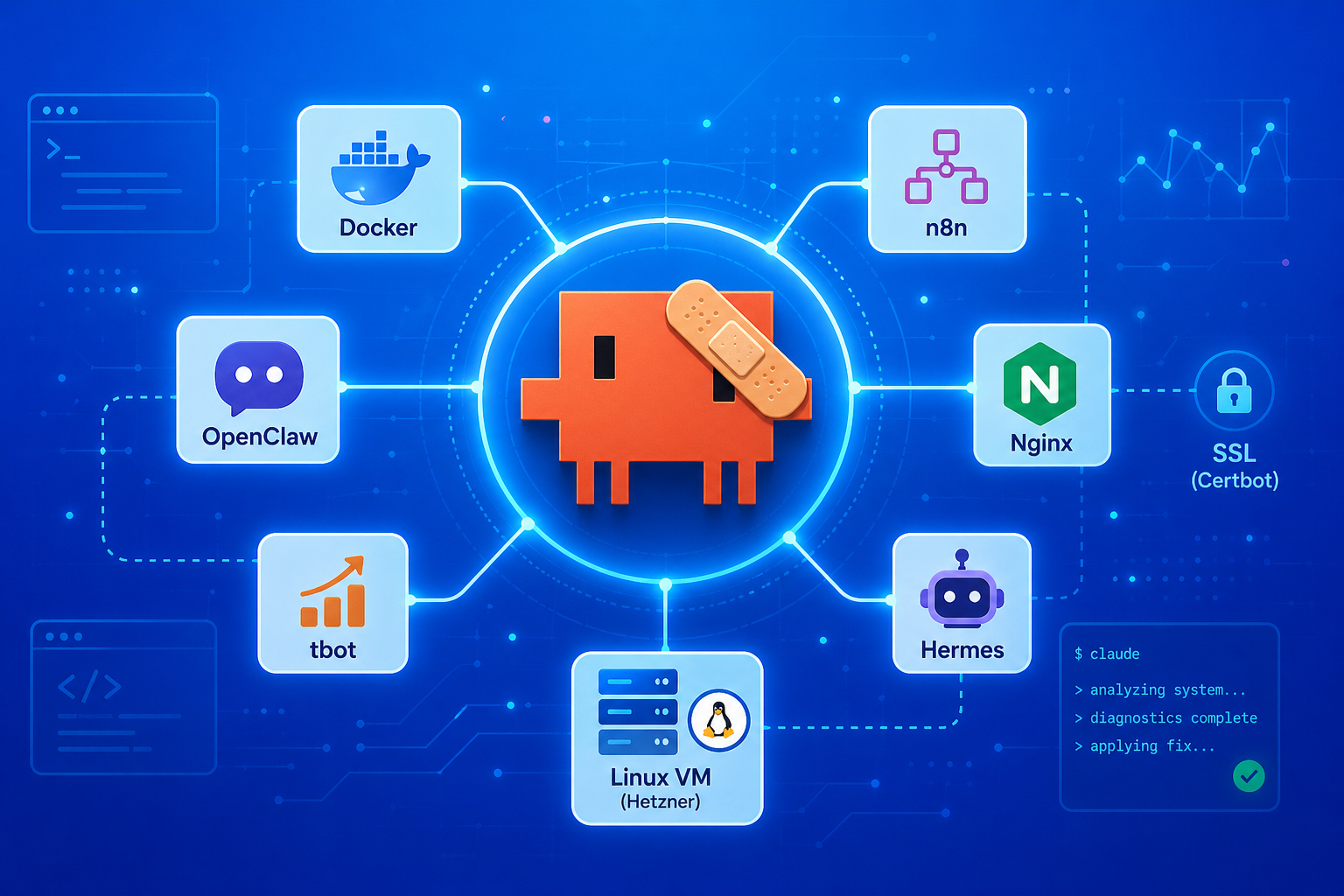
Most Claude Code tutorials show you how to install it on a Mac and call it a day. My setup is different. I run it on a Linux VM that also hosts a crypto trading bot, an AI assistant framework, n8n in Docker, and several web services sitting behind a reverse proxy and SSL certificates. This is what using Claude Code actually looks like in that environment, including the morning it decided to break itself.
What Is Actually Running on This VM

Before we get into Claude Code specifically, it helps to understand what I am working with. My VM runs on Hetzner and on it I have:
- OpenClaw, my self-hosted AI assistant framework
- Hermes, a separate AI agent
- tbot, a crypto paper trading bot with live API connections
- n8n running inside Docker for automation workflows
- Multiple web services each sitting behind Nginx as a reverse proxy with SSL certificates managed by Certbot
When something goes wrong on this server, it rarely goes wrong in isolation. A misconfigured Nginx block can take down three services at once. A Docker network issue can break n8n while everything else stays up. A certificate renewal problem can silently kill HTTPS on a subdomain you forgot existed. The dependencies between these things are real and they matter.
That is the environment I am bringing Claude Code into. Not a sandbox. Not a tutorial setup. A live server where breaking things has actual consequences.
What Do You Need Before You Install
Two things worth clarifying before you touch the command line.
You need a paid Anthropic plan. Claude Code is not available on the free tier. The entry point is Claude Pro at $20 per month. If you are going to use it heavily for server management and building, you will likely hit the usage limits on Pro fairly quickly, but it is a reasonable place to start.
You do not need an API key for basic use. When you install Claude Code and run it for the first time, it will ask you to log in with your Anthropic account. That is it. Your subscription handles the billing from there. You only need a separate API key if you are doing automated or headless workflows, which is a more advanced setup for another post.
Installing Claude Code on a Linux VM
You need Node.js installed first. If you do not have it, install it via nvm for the cleanest setup:
bash
curl -o- https://raw.githubusercontent.com/nvm-sh/nvm/v0.39.7/install.sh | bashsource ~/.bashrcnvm install --ltsThen configure npm to install global packages without sudo, and install Claude Code:
bash
mkdir -p ~/.npm-globalnpm config set prefix ~/.npm-globalecho 'export PATH=~/.npm-global/bin:$PATH' >> ~/.bashrcsource ~/.bashrcnpm install -g @anthropic-ai/claude-codeConfirm it installed correctly:
bash
claude --versionYou should see a version number. Then run:
bash
claude doctorThis checks your installation health and configuration. If everything is green you are ready to log in.
Logging In for the First Time
This is the part most tutorials skip, and it catches people off guard on a VM.
When you run claude for the first time, Claude Code will try to open a browser window to complete authentication. On a local machine that just works. On a remote VM with no display, nothing opens and it looks like something broke.
It has not broken. Run /login inside the Claude Code session and you will see something like this:
LoginBrowser didn't open? Use the url below to sign in (c to copy)https://claude.com/cai/oauth/authorize?code=true&client_id=...Paste code here if prompted >Copy that URL and open it on any device. Your phone, your laptop, anywhere with a browser. Log in with your Anthropic account, and the page will give you a code to paste back into the terminal. Once you paste it and hit enter, you are authenticated and Claude Code is ready to use.
This login is tied to your Claude subscription, not an API key. If you are on Claude Pro, that is the account you log in with. You will see the plan confirmed in the Claude Code header when you launch it, showing something like “Sonnet 4.6 · Claude Pro.”
You only need to do this once. Claude Code stores the session so future launches go straight in without asking again.
Launching Claude Code and a Few Useful Things to Know

To launch an interactive session, navigate into any project directory and run:
bash
claudeThe first time you launch Claude Code in any directory, it will show you a workspace trust prompt before doing anything else:
Accessing workspace: /home/traderQuick safety check: Is this a project you created or one you trust?Claude Code'll be able to read, edit, and execute files here.1. Yes, I trust this folder2. No, exitSelect option 1 to confirm and proceed. This is Claude Code’s way of making sure you are aware it has full read, edit, and execute access to everything in that directory. On a production server that is worth paying attention to. Only run Claude Code in directories you own and understand.
To run a one-shot prompt without opening a full session:
bash
claude "explain what this docker-compose file is doing"Switching models. By default Claude Code uses Sonnet. To switch to Opus for more complex reasoning tasks:
bash
claude --model claude-opus-4-5Opus costs more tokens so I use it selectively for trickier diagnostics and stick with Sonnet for routine tasks.
Skipping approval prompts. By default Claude Code asks for your confirmation before making file changes. On a production server this is sensible and I recommend keeping it on. But if you are doing rapid iteration in a development context and the approval prompts are slowing you down, you can launch with:
bash
claude --dangerously-skip-permissionsThe name tells you everything you need to know about using that flag on a live server. I will cover Claude Code permissions and trust levels properly in a separate post.
Useful slash commands inside a session:

/clear – clears the conversation context without ending the session
/status – shows your current plan, usage, and billing route
/cost – shows how many tokens the current session has used
/model – lets you switch models mid-session
What I Actually Use Claude Code For
The short version is that Claude Code is my first stop whenever anything on this server needs attention.
Debugging issues across linked configurations. When something breaks I describe what I am seeing and ask it to analyse the likely causes and propose a fix that does not break anything else connected. On a server with this many moving parts, a fix that solves one problem and creates two more is worse than useless. Claude Code has been consistently good at reasoning about knock-on effects before suggesting anything.
Managing Docker and web service configurations. Nginx configs, Docker Compose files, SSL certificate setups, reverse proxy rules. I describe what I want, Claude Code produces the configuration, explains what each part does, and flags anything that might conflict with what already exists.
Building things that need to live on the VM. The market scanning component of my trading bot was built this way. I described what I needed, we iterated directly in the project directory, and it never left the server.
Building and debugging n8n workflows. This is the one that surprises people. Because Claude Code is connected to my n8n instance, I can prompt it to build an automation workflow and it will actually construct it, not just tell me how. When a workflow has an error I ask Claude Code to debug it the same way. That integration alone has saved me hours.
The Morning It Broke Itself

Here is where things get interesting. This morning I opened my terminal, typed claude, and got this:
-bash: /home/trader/.npm-global/bin/claude: Permission deniedI tried a few things. Sudo. Chmod. Nothing worked. Running claude --version returned a different error:
Error: claude native binary not installed.Either postinstall did not run (--ignore-scripts, some pnpm configs)or the platform-native optional dependency was not downloaded.After some research, the culprit was Claude Code’s auto-update feature. It had updated itself overnight, migrated to a new native binary installer, and left the old npm wrapper pointing at a binary that no longer existed. I did not do anything wrong. The tool updated itself and broke itself in the process.
The obvious fix did not work first:
bash
npm uninstall -g @anthropic-ai/claude-codenpm install -g @anthropic-ai/claude-codeThis threw an ENOTEMPTY error because the old directory was locked and npm could not rename it cleanly. The actual fix was to remove the leftover directory manually first:
bash
rm -rf /home/trader/.npm-global/lib/node_modules/@anthropic-ai/claude-codenpm install -g @anthropic-ai/claude-codeClean reinstall. Four seconds. Back up on version 2.1.123.

One important thing before you run this: Claude Code stores your configuration, session history, project context, and MCP connection cache in a ~/.claude/ folder. The reinstall does not touch that folder. Your settings and project memory stay exactly where they were. You can confirm what is in there before you proceed:
bash
ls ~/.claude/Mine showed backups, cache, projects, sessions, settings files, and history. All intact after the reinstall.
After the reinstall, you will need to log in again. The reinstall clears your active authentication session. Just run claude and follow the same login steps from earlier in this post. Copy the URL, open it on any device, paste the code back. You will be back in within a minute.

FAQ
Do I need a paid Anthropic plan to use Claude Code on a Linux VM? Yes. Claude Code is not available on the free tier. You need at least a Claude Pro subscription at $20 per month or direct API credits through the Anthropic console. When you first launch Claude Code, it walks you through logging in with your Anthropic account. No separate API key is needed for basic use.
My VM has no browser. How do I log in to Claude Code? Claude Code handles this cleanly. When no browser is available, it gives you a URL to copy and open on any other device. Log in with your Anthropic account, copy the code from the page, and paste it back into your terminal. The whole process takes about a minute.
Will reinstalling Claude Code delete my project history or settings? No. Everything Claude Code saves about your setup lives in the ~/.claude/ directory in your home folder. A standard reinstall via npm does not touch this directory. Your configuration, session history, and project context will all still be there when you relaunch. You will just need to log in again after reinstalling.
Can Claude Code connect to and modify things running on the same VM? Yes, and this is what makes it genuinely useful in a server context. When you run it inside a project directory it reads your actual files and configurations. With MCP connections set up, it can interact with services like n8n directly. That is a different level of usefulness compared to running it locally and copy-pasting results back and forth.
The Honest Take
Claude Code on a VM is not magic. There are still moments where it suggests something I have to sanity check before running, and I always review proposed changes to configuration files before applying them. Human oversight on a production server is not optional.
But as a tool for managing a complex, interconnected server environment, it has become something I genuinely depend on. The speed of going from “something is broken” to “here is the fix and here is why it will not break anything else” is hard to replicate manually.
If you are already running a Linux VM with multiple services and you have not tried Claude Code on it yet, the install takes about five minutes. Just be aware it might update itself overnight and break its own binary. Now you know how to fix that too.
There is a lot more to cover on Claude Code, how to configure permissions properly, how to set up MCP connections to your services, and the specific prompting approaches that get the best results on infrastructure work. I will get into all of that in follow-up posts.
If posts like this are useful, I write about AI tools and automation at augustwheel.com. You can also get the practical stuff that does not always make it to the blog by subscribing to the August Wheel newsletter at newsletter.augustwheel.com.



Leave a Reply